Most marketers using AI are still doing it the old, and slow way. They open a chat, type a prompt, get something generic back, edit it into shape, and repeat. It works, but it's not that different from doing the work yourself. The gap between "using AI" and "having AI work for you" is bigger than most people realize, and it comes down to one thing: getting Claude to take action, not just answer questions.
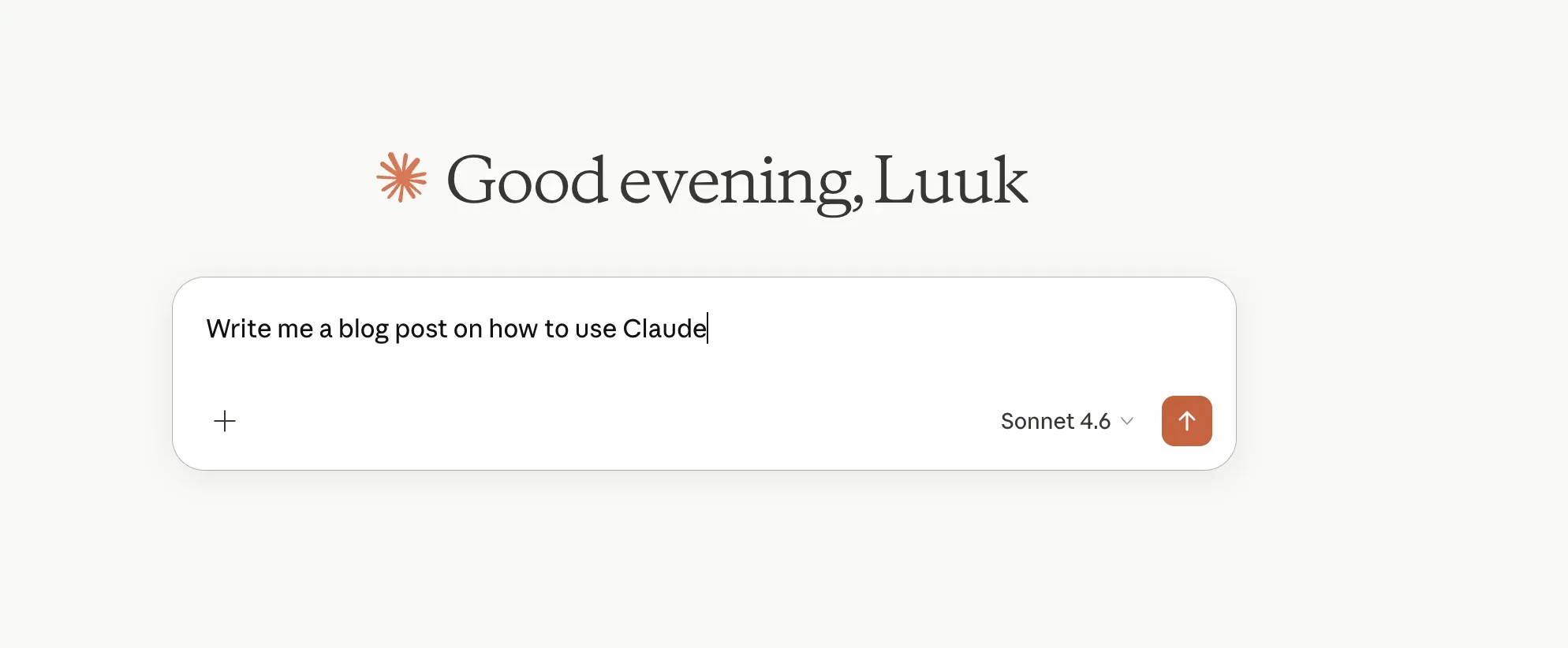
In this article, that was written based on a webinar we recently ran, we'll look into how to get started with Claude taking actions for you. Specifically, we'll look at different ways marketers are using Claude today to speed up their work. Below are three ways marketers are doing exactly that with Claude, none of them require a technical background, and all of them solve problems that eat real hours every week.
This webinar was run on Contrast webinars
Connect with our speakers
Our speakers love it if you connect with them on LinkedIn:
- Giula teaches to companies like Zapier, Optimizely and IBM
- Louise does growth at Tella
- Lusine does growth at Contrast webinars
Why marketers are talking about Claude
Marketing teams spend loads of time on repetitive work: drafting content that stays consistent with a brand voice, tracking competitor updates, and producing large volumes of ad variations. That workload becomes even more important for solo marketers or very small teams, where there is limited capacity to keep up with content demands and ongoing monitoring.
Claude actually pushes back. ChatGPT has a habit of telling you exactly what you want to hear, which feels helpful until you realise it's been agreeing with a bad idea for twenty minutes. Claude will stop you, question your reasoning, and occasionally be right about it.
For people working alone or in small teams without much of a sounding board, that's worth more than it sounds. The output tends to be better too — less generic, less polished-to-the-point-of-meaningless. And when it comes to connecting Claude to other tools and building workflows that actually do things, it's consistently where marketers keep landing. Not out of loyalty. Just because it keeps working.
Getting Set Up: Browser, Desktop App, and Claude Code
Claude can be used in the browser, but it's especially the desktop version of Claude that is useful because it can work with what is currently on the computer screen. Instead of repeatedly taking screenshots, Claude can be instructed to use what is visible, which keeps context inside the workflow:
- Browser version — good for basic back-and-forth
- Desktop app — sees your screen, gives you Claude Code, works inside your workflow
- Desktop app + Chrome connector — all of the above, plus it can actively browse the web on your behalf
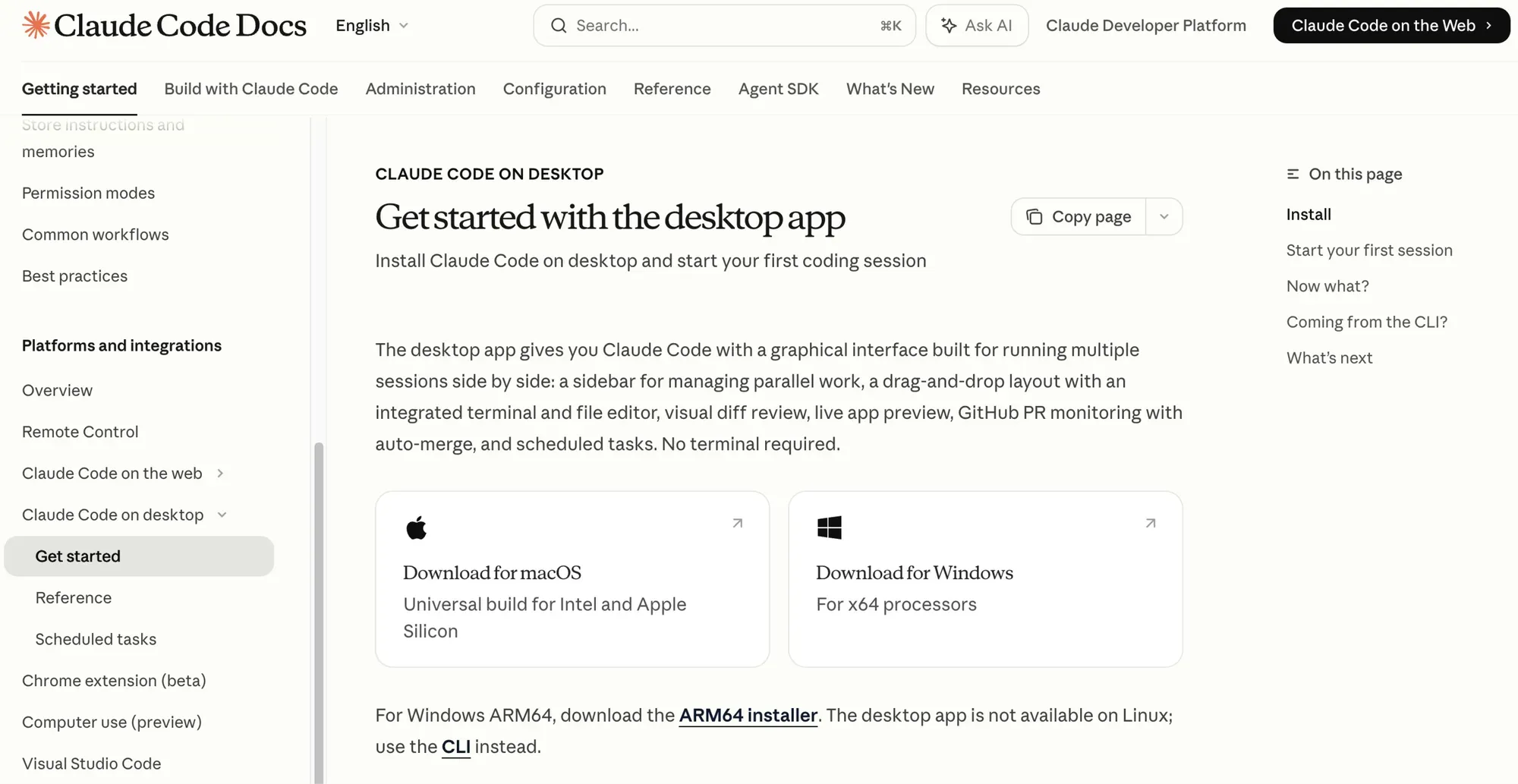
You can also use Claude Code to build small apps and automations. It can be used via the terminal, but terminal use is not required to benefit from Claude Code locally. Let's look at how you can move beyond chat-only usage and toward building lightweight tools that can take actions for you, helping you save time – and hopefully lots of frustration.
Use Case 1: Writing Content That Sounds Authentically Like the Author
The Problem: AI-Sounding Output and “Defaulting to Average”
If AI-generated content keeps coming back sounding generic, that's not a Claude problem. You guessed it. It's a you problem. When you give Claude nothing to go on, it defaults to average, because average is the safest guess.
The fix is context. Specifically, your context.
Claude can connect directly to your Gmail, Google Drive, and Slack. Here's a quick link that takes you right to the right screen in Claude. Once it has access to how you actually write — emails, proposals, Slack threads, past posts — it can start building a real picture of your voice instead of guessing at it. Let's see how it's set up.
Connect Real Communication Context and Generate a Voice Guide
The more context the better. Because Claude can learn how you write in different scenarios. I write different on Slack than on Email. Thus the more tools you connect, the better it can learn how to write like. you:
- Connect Claude to apps via the customization area in the sidebar, including Gmail, Google Drive, and Slack. These sources reflect how someone actually communicates—emails, proposals, and teammate messages—so Claude can use that context.
- Create a voice and style guide/ Claude Skill from past writing, such as copying previous LinkedIn posts and pasting them into Claude, then asking it to generate a voice/style guide based on those examples and any connected sources (Slack, Gmail, Drive). The output becomes a "skill," described as essentially a text file—effectively a detailed brief. You can then use this as a Claude Skill.
Learn more about Claude Skills
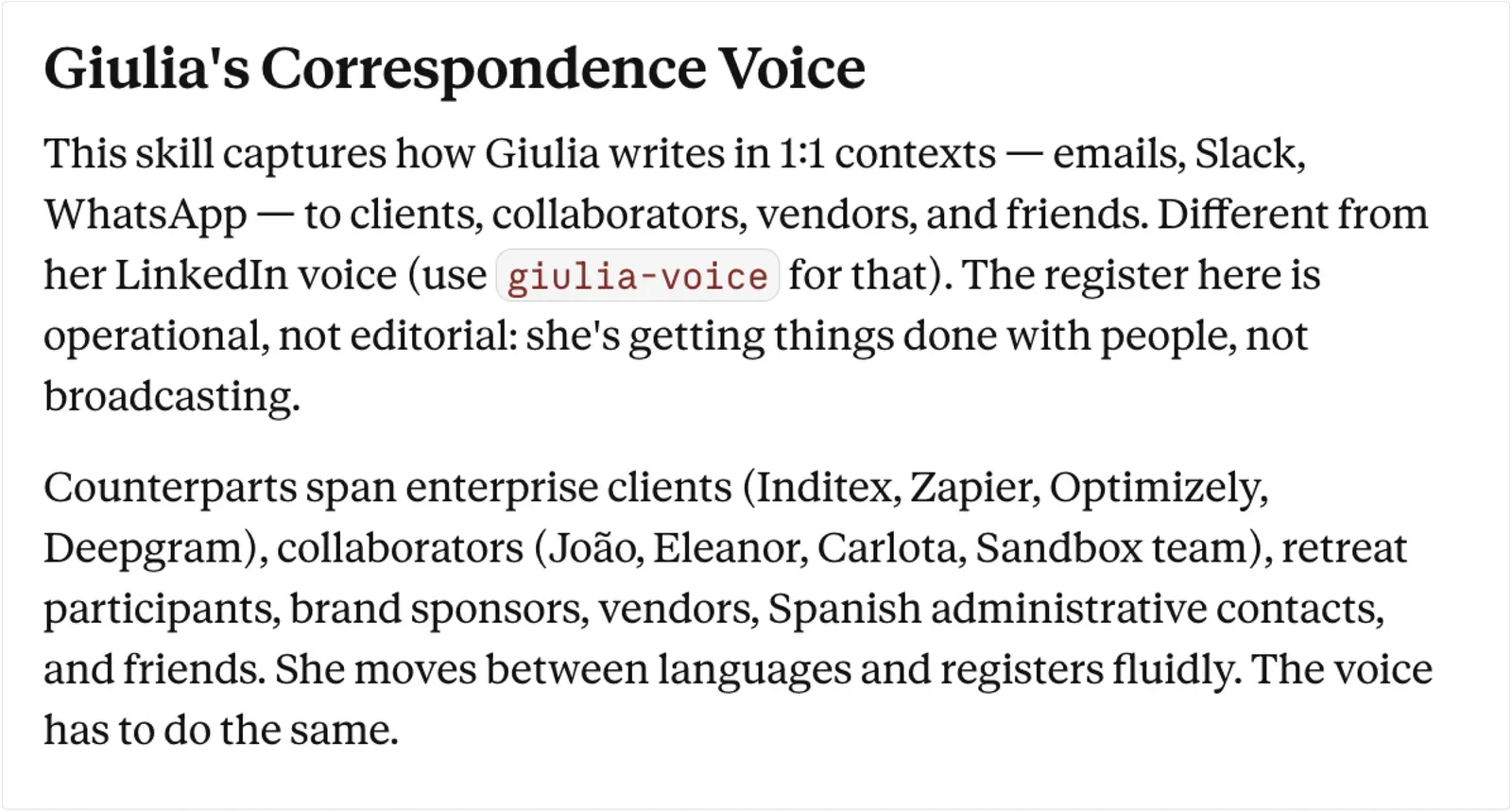
The guidance emphasizes reviewing and refining the generated guide rather than accepting it as-is. If it is not detailed enough, Claude can be prompted to expand it. If it captures habits the author does not want repeated, those elements can be removed so the guide reflects how the author wants to write going forward.
Skills as Saved Prompts
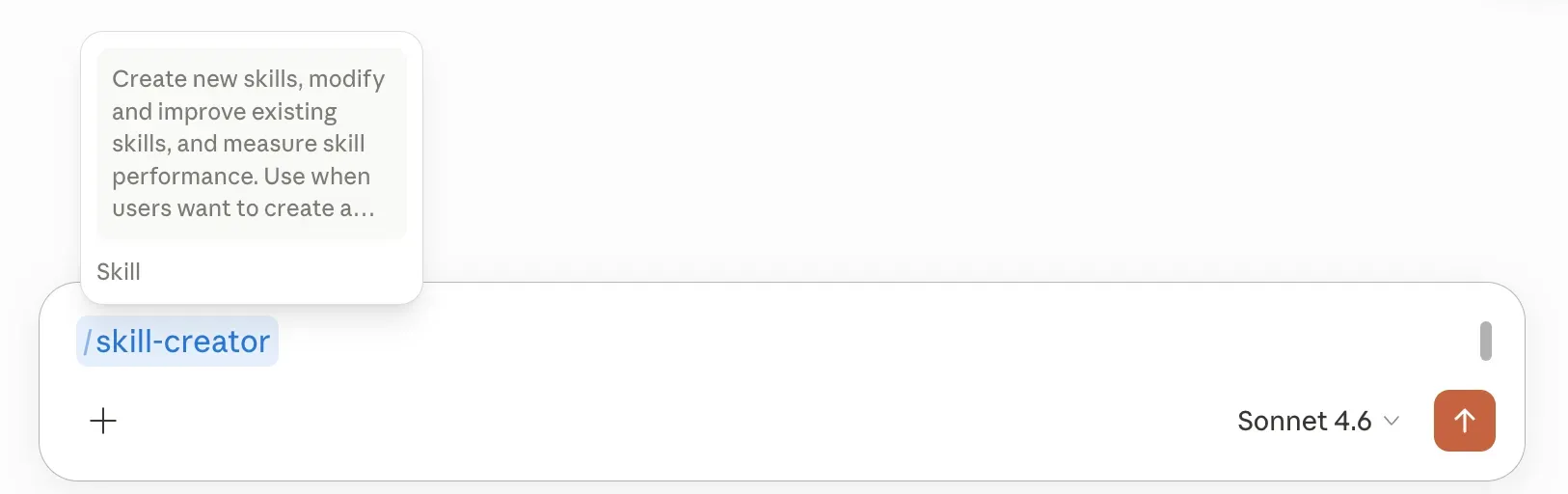
A skill is described as a saved prompt that can be invoked like a slash command. Once a "write like me" skill exists, requests for content can consistently default to those instructions rather than producing generic output. Skills can also be searched and reused from others; one example mentioned is a skill aimed at removing patterns that make writing sound AI-generated.
Browse 1000s of Claude Skills on Github
How to avoid AI Slop
There also exist Claude Skills that avoid AI Slop. Every piece of text the AI produces — tweets, emails, articles, bios, reports, copy and message passes through constraints that eliminate the vocabulary, structure, punctuation, and formatting patterns that readers and detection tools flag as AI-generated.
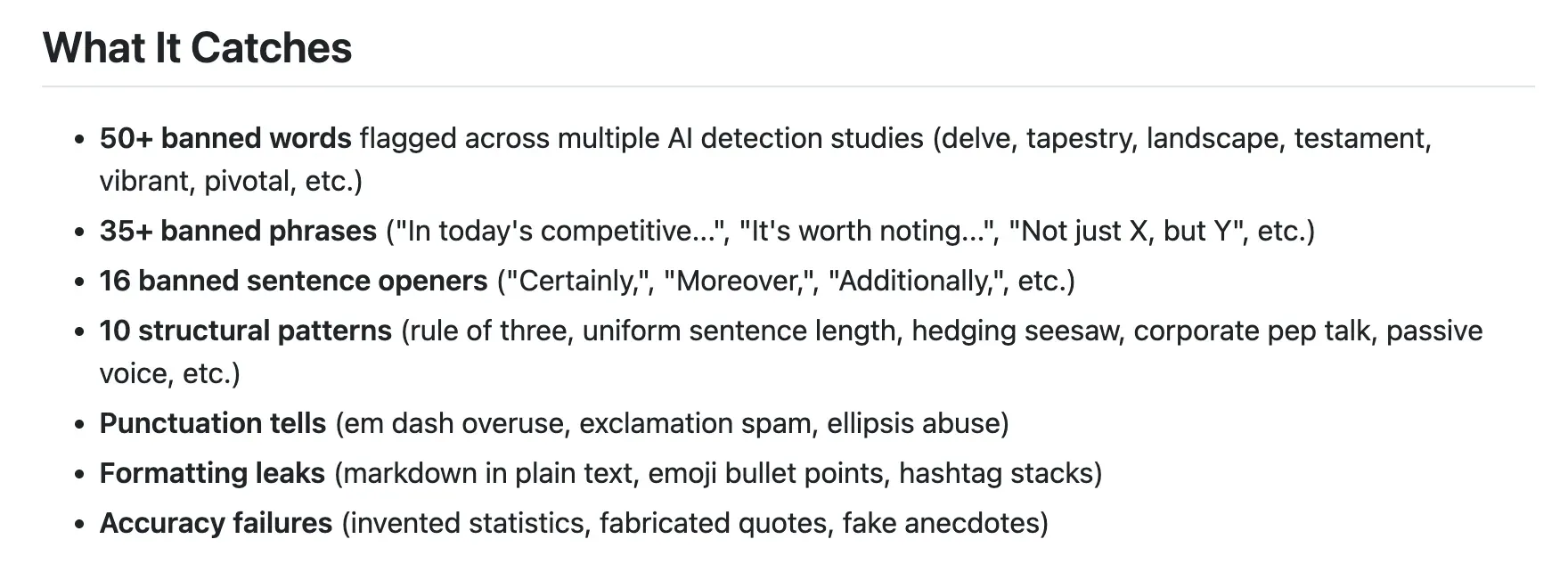
Based on research from Carnegie Mellon (2025), Wikipedia's Signs of AI Writing page, Buffer's 52M post analysis, and community detection patterns documented across X and Reddit. Here's a link to it.
Use Case 2: Staying Up to Date on Competitor News With Routines
Ask most marketing teams how they keep track of what competitors are doing and you'll get a version of the same answer: someone checks their website occasionally, someone else subscribes to their newsletter, and half the time something slips through anyway.
Claude can replace that entire patchwork with a single instruction.
Scheduled Routines That Browse, Summarize, and Post to Slack
Claude Routines (available in Claude Code) are presented as a way to create an agent-like behavior that runs at a specific time each day. An example routine is configured to browse a competitor’s site for example, summarize new or refreshed content, and send the summary to a Slack channel dedicated to competitor updates.
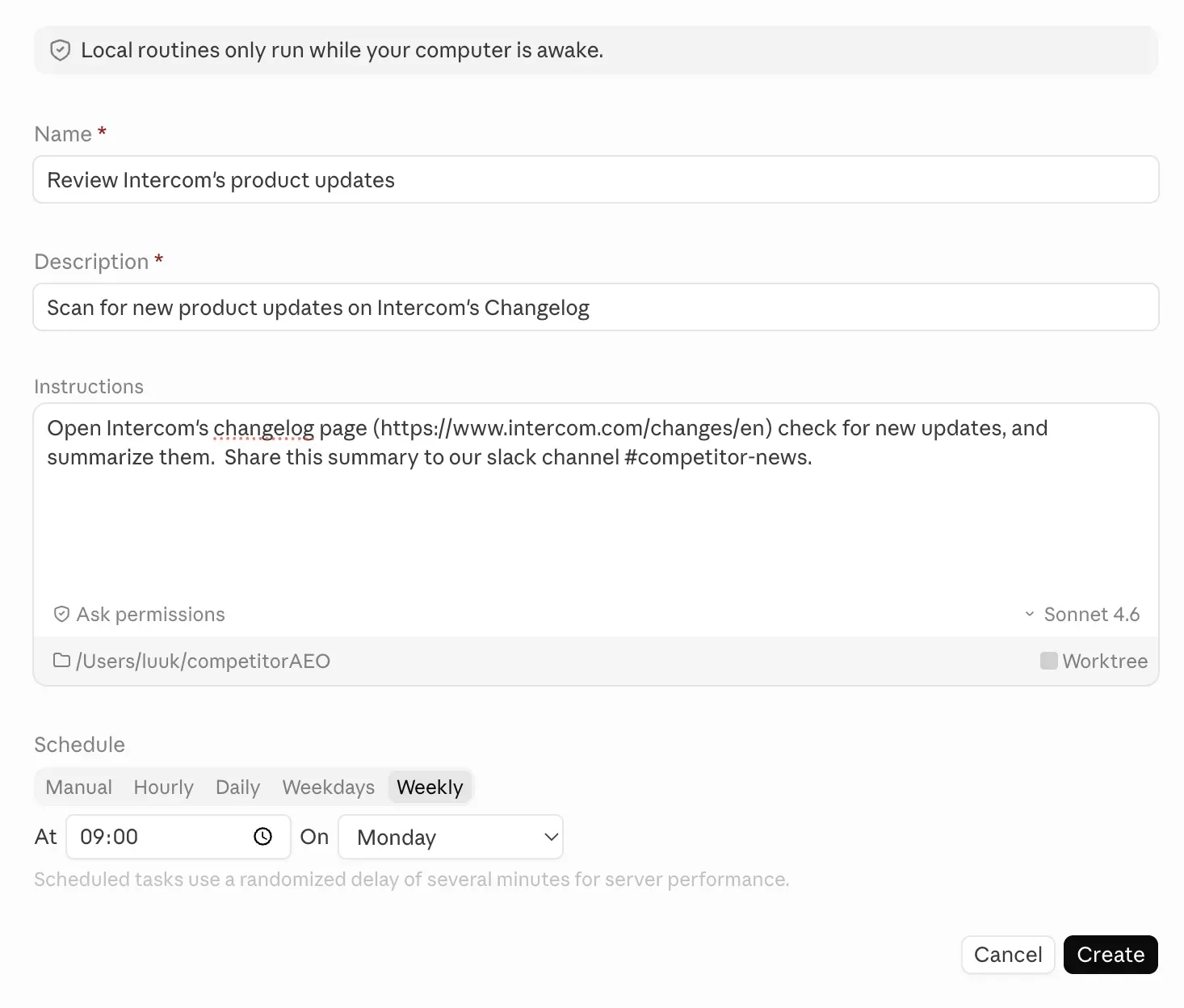
The key benefit is that it runs automatically, so the update appears in Slack each morning, or week without manual effort. Information flows automatically in the spaces you need it to be.
Open {Company name} changelog page (url), check for new updates, and summarize them. Share this summary to our slack channel {your slack channel}.
Of course you can also add multiple competitors in this prompt, and ask it to generate a summary of all the changes. Feed it more information about what you are building, who your ICP is - and Claude will do a better job surfacing relevant information for you.
Claude Code Routines vs. Work Schedules
Claude Code routines and Claude for Work schedule are different: Claude Code routines are described as running even if the computer is off, while work schedules may require the machine to be on.
Use Case 3: Generating 100+ High-Performing Ad Variations in Minutes
Updating ad designs weekly with winning copy or new copy to test is tiring, especially when many variations are needed. Figma is often used to create these but manual updating these is often the bottleneck. So let's look at how we can automate it. By the way, Louise also made a video on this that goes into lots of detail. We recommend you to simply follow this, as as contains more detail than what we could have discussed in the webinar.
Use Messaging Docs + Winning Ads + Integrations (Sheets and Figma)
Alright, if you don't want to watch her video – fair game. Here's a quick summary of the steps you should take to generate ads using Claude and the Figma MCP.
1. Understand the Goal
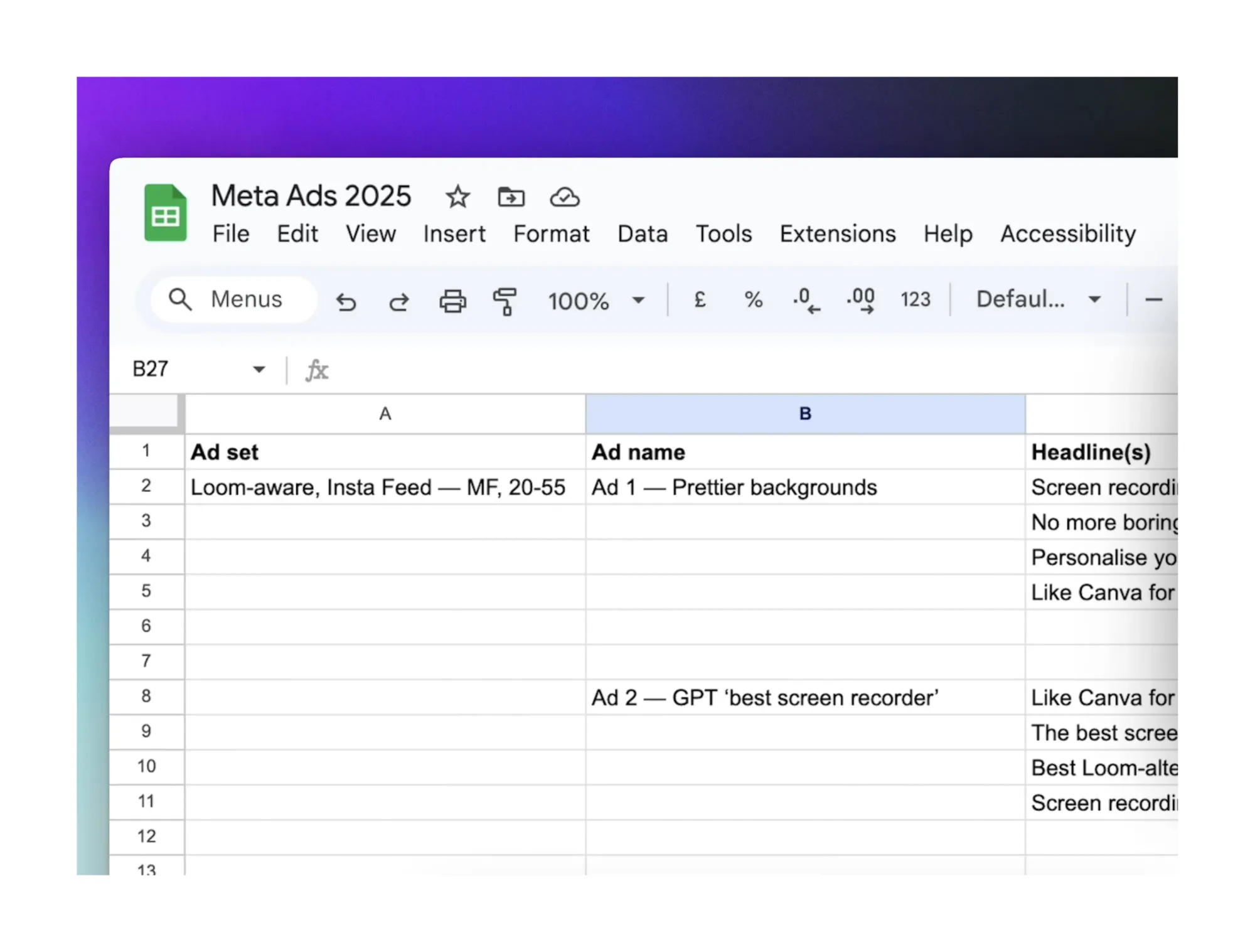
The workflow is designed to scale ad creative production: turn a small set of winning ad designs plus your messaging docs into dozens of new ad variations in seconds, using Claude, Google Sheets, and Figma.
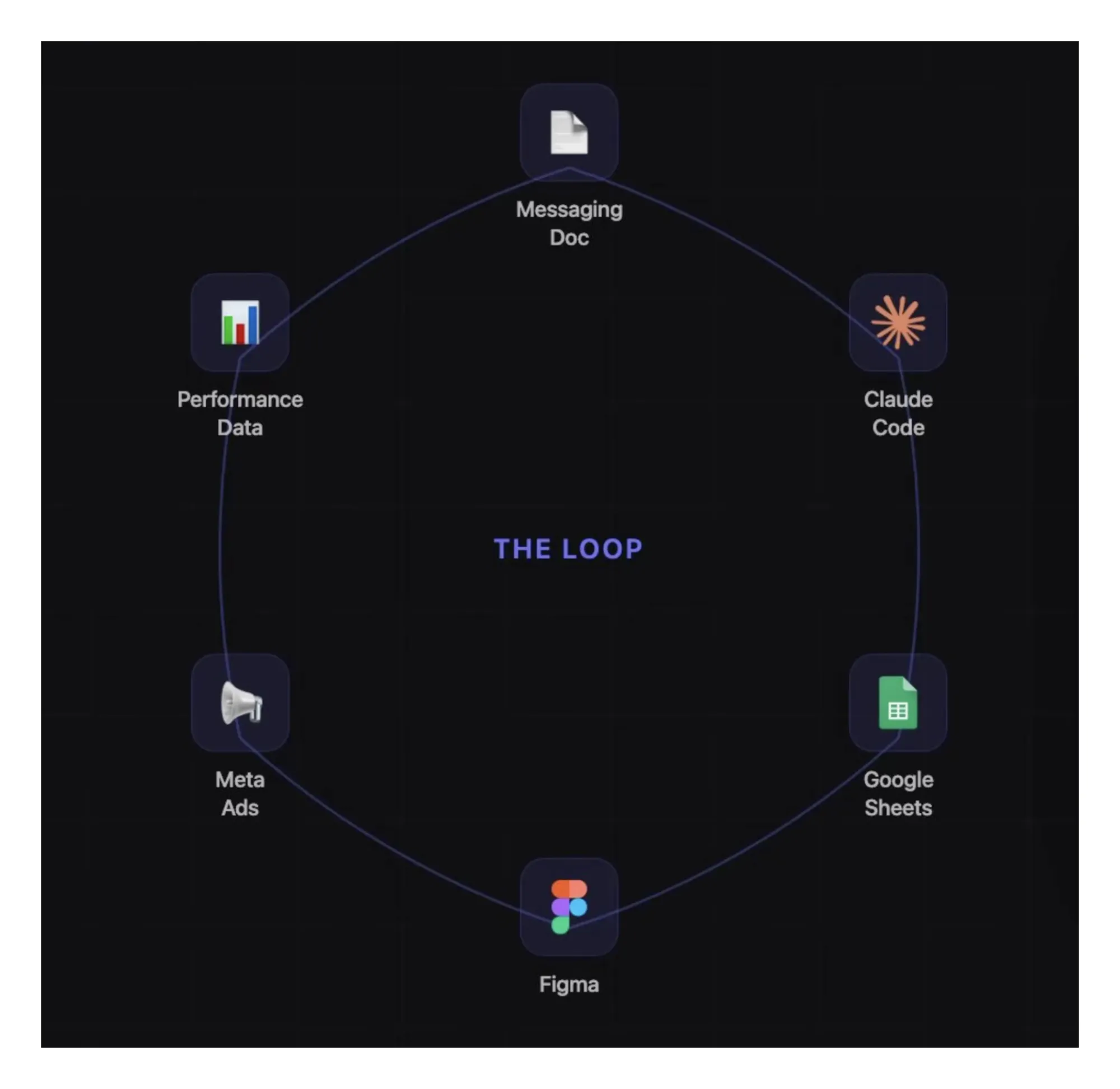
The loop is straightforward:
- Messaging docs →
- Claude generates headlines into a spreadsheet →
- Claude + Figma automatically swap headlines into your existing ad designs.
You still upload ads to Meta (or other platforms) manually.
2. Prepare Your “Inputs”
You need three main assets before any automation:
1. Messaging / product marketing docs
- A "how to talk about X" document: who you are, worldview, main value props, reasons people use your product, differentiation vs alternatives, key features and benefits, etc.
- A manifesto or vision doc: what you stand for, direction of the product/company. These will be used as the source material for ad angles and headlines.
2. Winning ad designs in Figma
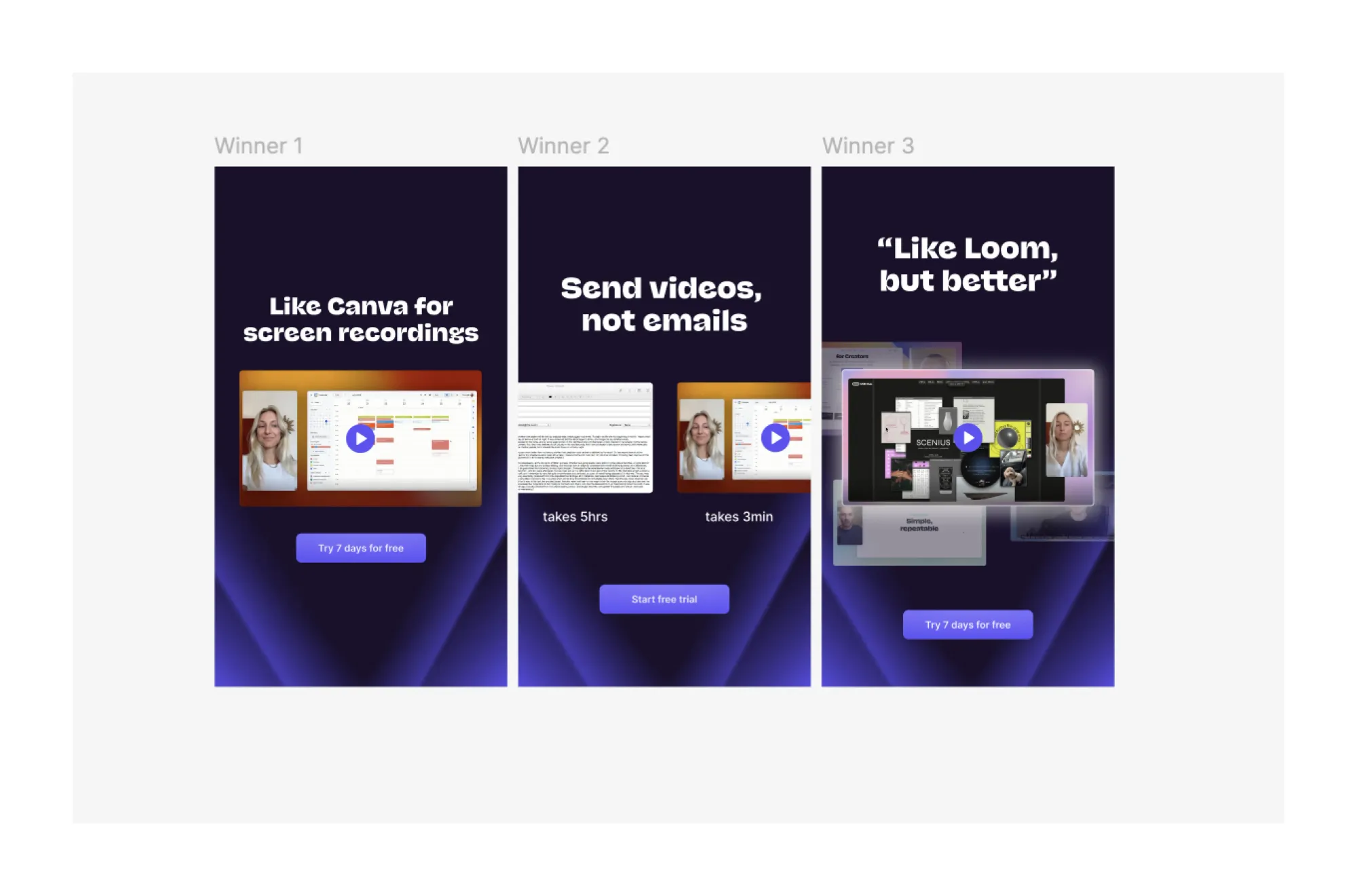
- Existing ad frames that have already performed well.
- The point is: keep the design constant and only change the copy, so you’re testing one variable (headline) at a time.
3. Reference headlines (optional but helpful)
- A CSV exported from Meta (or other ad platforms) with top‑performing headlines.
- You’ll use this to steer length, tone, and structure.
- In the video, they constrain headlines to around 17 characters so they visually fit the design.
3. Export Messaging Docs and Store in Claude
- Export your messaging guidelines and manifesto as markdown files (e.g. from Notion).
- Save them somewhere Claude Code can read (local project folder).
- Optionally, also store them in Claude’s long‑term memory (Claude.md or similar) so you can reuse them for future tasks.
Reminder: the better and more specific these docs are, the better your ad copy will be.
4. Set Up Google Workspace CLI (for Sheets)
This lets Claude Code create and edit Google Sheets via the terminal.
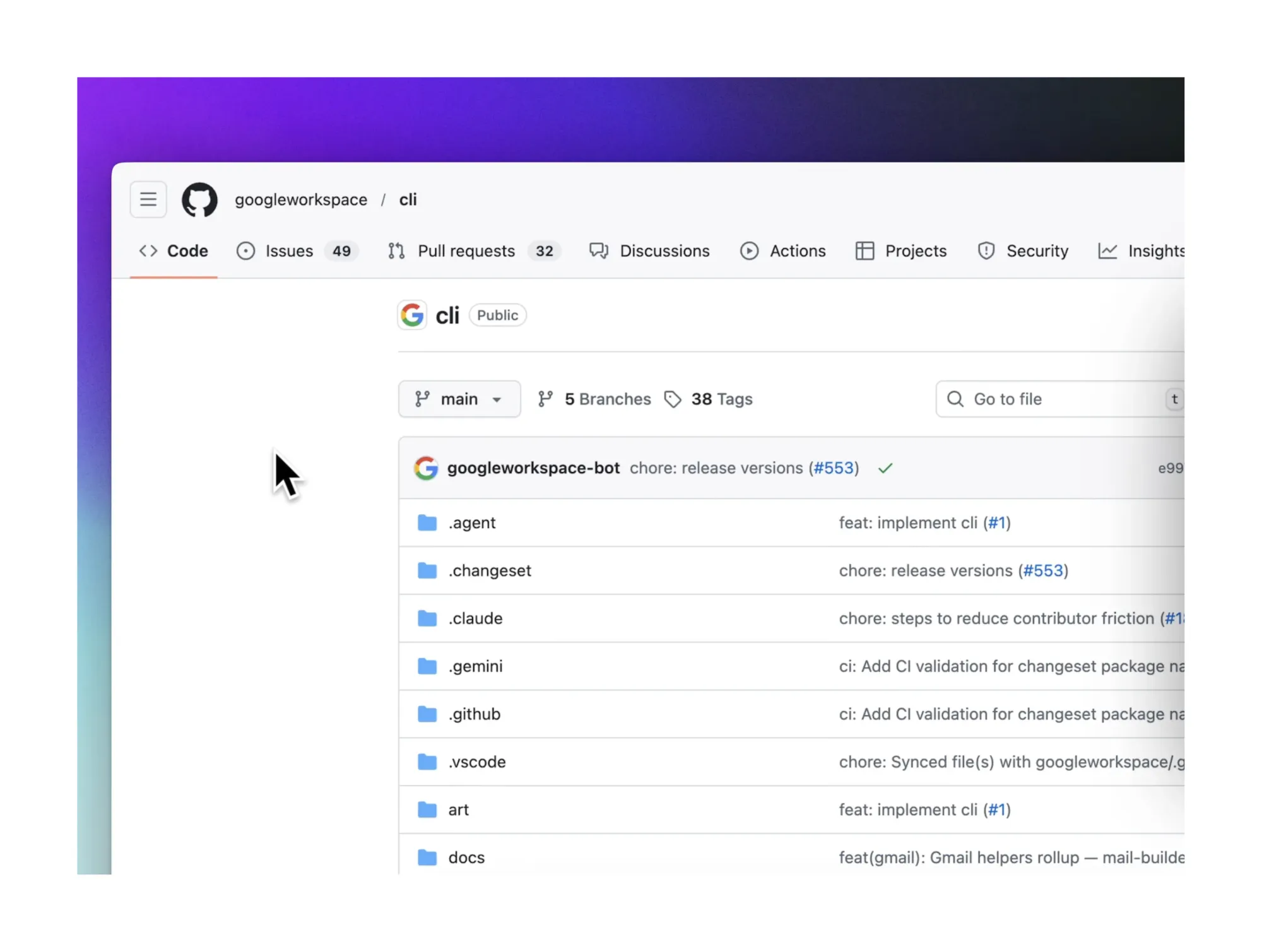
- Install Google Workspace CLI (gws)
- Install the CLI package (via npm/brew)
- Install Google Cloud CLI
- Install the gcloud CLI so gws can authenticate with your Google account.
- Authenticate with Google Cloud
- Run login commands (e.g. gcloud auth login) to connect your Google account.
- Create a Google Cloud project & OAuth client
- In the Google Cloud Console, create a project (e.g. "TA demos").
- Configure OAuth consent (external app, app name, contact email).
- Create OAuth credentials (Desktop app), then copy the Client ID and Client Secret back into the CLI when prompted.
- Log into gws and enable Sheets API
- Run gws setup and complete prompts.
- Enable the Google Sheets API for your project.
- Test it by running a CLI command to create a spreadsheet; confirm the sheet shows up in your Drive.
Once this is working, you can programmatically create and update sheets from Claude via gws.
5. Connect Figma via “Claude Talk to Figma” MCP
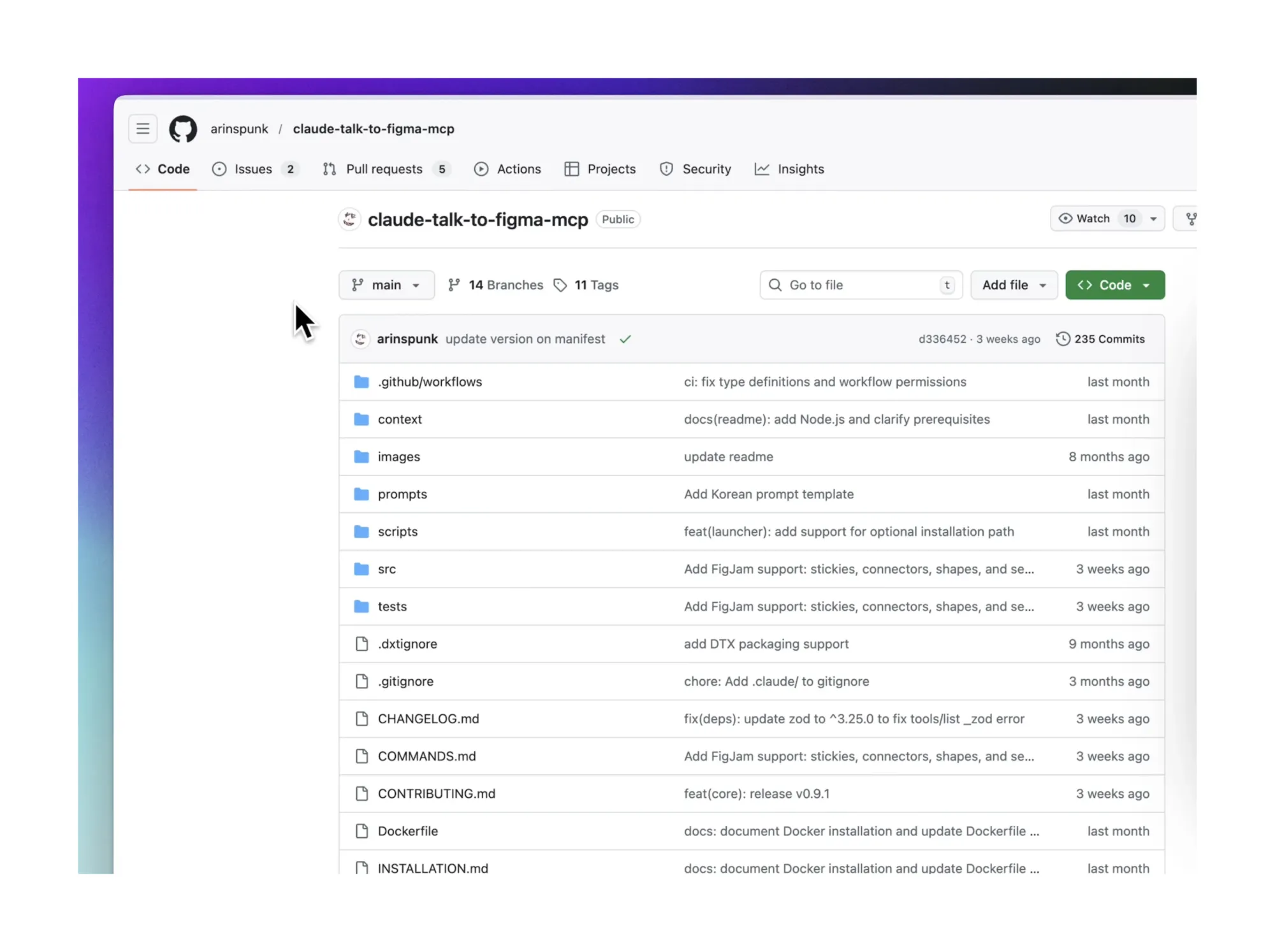
This is what lets Claude populate Figma frames with new headlines.
- Install the MCP package locally
From the repo, run something like npx claude-talk-to-figma-mcp to install dependencies. - Register the plugin in Figma
- In Figma, go to plugins → Import from manifest.
- Choose the manifest.json from the MCP repo.
- This adds a Figma plugin that connects to Claude.
- Configure the MCP in Claude Code
- In Claude Code, add the MCP configuration snippet from the repo to Claude’s MCP config.
- Restart Claude and check the MCP list; you should see "Claude talk to Figma" as connected.
- Link Figma and Claude with a channel ID
- Open the Figma plugin; it will give you a channel ID.
- Paste that ID into Claude so it knows which Figma file/session to control.
At this point, Claude can issue MCP actions to duplicate frames and change text layers in your Figma file.
6. Use Claude to Generate Angles and Headlines
- Read the messaging files
- In Claude Code, ask it to read the exported markdown files (messaging guidelines + manifesto).
- Prompt: Read these files and summarize key angles, one‑liners, and buyer pains I should use for an ad campaign.
- Generate headline ideas
- Once you like the angles, ask Claude to create short headlines.
- Prompt example:
Generate ad headlines for these angles, max 17 characters, short and snappy, using the winning headlines CSV as style reference.
Claude will produce candidate headlines guided by:
- The messaging docs
- The manifesto
- The optional CSV of best‑performing copy
7. Pipe Headlines into Google Sheets via CLI
Now you connect Claude’s text generation to Sheets.
- Tell Claude explicitly to use the Google Workspace CLI, not the browser extension.
- Example instruction:
"Using the Google Workspace CLI, create a Google Sheet called ‘March 2026 Ad Headlines’ and populate it with X headlines, each under 17 characters. Use the existing winning‑headlines spreadsheet I attached as inspiration." - Claude will:
- Use the same CLI commands you tested earlier to create the sheet.
- Insert rows with generated headlines.
- Optionally add metadata like angle or persona as extra columns.
You end up with a structured sheet: each row = 1 headline + metadata.
8. Populate Figma Designs from Google Sheets
This is the "wow" part.
- Ensure you have:
- The Google Sheet URL with headlines.
- The Figma file URL with your winning ad frames.
- The Figma channel ID from the plugin.
- In Claude, give an instruction like:
"Use Google Workspace CLI to read the ‘March 2026 Ad Headlines’ sheet. For each winning ad frame named ‘Winner 1’, ‘Winner 2’, ‘Winner 3’ in this Figma file [Figma URL], create 5 new variations and replace the headline text with distinct headlines from the sheet. Keep each headline within the 17‑character limit so it fits the design." - Claude, via MCP + CLI, will:
- Read the sheet, identify headline rows.
- Clone each winner frame in Figma 5 times.
- Update the text layers with new headlines, live in your Figma file.
You watch Figma update in real time: dozens of new ad frames appear with different copy.
9. Turn It into a Reusable “Skill”
To avoid re‑explaining the workflow each time, you can package it as a Claude Code "skill":
- Define a skill like ad_variation_generator that expects:
- Google Sheet URL (headlines)
- Figma URL (designs)
- Number of variations per winner
- Figma channel name / ID
Then when you want to rerun the process for a new campaign, you mostly just update:
- The sheet with new headlines
- The Figma file / frames
- The parameters (e.g. number of variations, which winners to clone)
The rest is automated.
How You Can Use This in Practice
Day‑to‑day, the loop looks like:
- Keep your messaging docs and manifesto up to date.
- Periodically export or sync winning ad headlines into a CSV.
- Run the Claude → Sheets step to generate fresh headlines per angle/persona.
- Run the Sheets → Figma step to generate new ad variations.
- Manually upload those to Meta or other ad platforms, track performance, and repeat.
This is how a very small growth team (or even one person) can operate at "big team" creative throughput without hand‑editing every single ad.
Becoming a Claude Expert
Most people are using about 10% of what Claude can actually do. Not because the rest is complicated, but because the jump from "AI chatbot" to "AI that works for you in the background" isn't obvious until someone shows you it's possible.
Skills mean you stop re-explaining yourself every time. Routines mean things happen without you triggering them. MCPs mean Claude stops being a conversation and starts being something closer to a system.
None of this requires a technical background. It requires a bit of setup, some patience with the learning curve, and the willingness to ask Claude itself when you get stuck — because that's usually the fastest way through.
The marketers getting real value from this aren't necessarily the most technical ones. They're the ones who stopped treating Claude like a search engine and started treating it like something they could actually build with.
By the way, soon we will host Part 2. Stay tuned and keep an eye on our webinar channel for new webinars on Claude.
Questions from Claude Beginners
How often do workflows break, and do they need regular maintenance?
It depends on what you're building. The examples we covered here are relatively simple and easy to maintain. When something does break, you can tell Claude directly what isn't working and it will generally fix itself. More complex builds with a front end and back end break more often, but the expectation is that Claude will get better at this over time.
Do I need the desktop app or Claude Code, or does the browser version work?
The browser version works for the use cases covered, but you'll be more limited. To be honest, there's no good reason to choose the web version over the desktop version. If your company has security restrictions that prevent you from using Claude Code or the desktop app, B2B tools built on top of Claude exist that offer similar functionality with an additional security layer. For personal learning, using Claude on a personal account is a good workaround.
What are the security risks of connecting Claude to other tools?
The main risk is giving Claude too many permissions. Start with read-only access wherever possible. Write, edit, and delete permissions should only be granted where a workflow genuinely needs them. There are real cases of agents with overly broad access accidentally deleting entire production databases. At Contrast, most things are built using read actions only, with any resulting actions taken locally rather than through the agent directly.
Claude keeps losing the thread and not completing tasks — what's happening?
Two likely causes. First, you may be running low on usage credits — switching to a lighter model can help stretch them further. Second, long conversations cause Claude to lose context. The fix is to have Claude save outputs as artifacts, then move them into a fresh conversation to continue from there.
How do you stop Claude from being too wordy?
Saying "be more concise" isn't specific enough. Instead, work back and forth with Claude until you get an output you're happy with, then ask it: "What prompt would have produced this from the start?" Save that answer as a skill so the problem doesn't repeat.
Are the Anthropic 101 courses worth doing?
The recommendation was to skip the courses and learn by doing instead. When you hit something you don't understand — what an MCP is, what an API does — look it up in context rather than upfront. Claude itself can walk you through anything you're trying to build if you just ask it. Starting with a personal project unrelated to work was suggested as the best way to experiment without pressure.
How do you create assets and workflows that non-marketing teammates can use while staying on brand?
For written content, a one-pager covering your top product features, key differentiators, competitor positioning, and common customer complaints gives Claude enough to work from consistently. For a broader design system, creating one inside Claude was suggested, though it was noted that Claude's design capabilities can be heavy on usage and aren't always easy to amend afterwards.
What's the difference between Claude Code routines and Claude Cowork schedules?
Routines run even when your computer is off. Cowork schedules require your machine to be on. For anything automated and unattended — like a morning competitor briefing — routines are the more reliable option. This was flagged as accurate at the time of the webinar but worth double-checking as things change fast.
How do you get Claude to generate ad variations with adjusted designs, not just adjusted copy?
This wasn't something that had been tested directly. The suggestion was to handle the design changes first and the copy changes second, or describe the design adjustments clearly enough for Claude to act on them through the Figma MCP.
How long does the ad variation workflow take from brief to 100 variations?
Under an hour if you're happy with Claude's output. The technical steps themselves take seconds — generating twenty designs takes under a minute. The time investment is in the setup and in giving Claude enough context to produce good headlines.