
The fastest way to create webinar registrations lists in HubSpot
Last updated on Apr 9, 2026 by Luuk De Jonge
Goal
Creating segments from webinar registrations and viewers in HubSpot often involves manual CSV uploads or complex synchronization. Users need a faster way to generate these lists without manual data handling. Let's find out what's the fastest — and also easiest way in this guide.
In this video
- 00:001-Click lists the fastest way to create lists on HubSpot
- 00:22Create your lists/segments in HubSpot
- 01:38View your lists/segments in HubSpot
Show full transcript
I'm going to show you the fastest way to create segments from webinar registrations, viewers, etc in HubSpot.
So what you see right here is our, all of our segments and we have zero CSVs, we have zero uploads, we have zero synchronization.
The only thing that we're doing is using contrast one-click lists.
Let me show you how it works.
Go into Contrast.
Go into the admin dashboard, where you have all of your webinars.
The only thing that you need to do is go to the webinar that you want to create lists or segments for.
We have this webinar, which is actually happening today, together with Ryan Gunn and Maggie Philbin on App events.
Search for it on our contrast channel.
Anyway, the only thing that you need to do is click on the webinar, go to the Registrations tab, and right here you have the Create list button.
Should probably be called Create Segments, because that's how HubSpot is calling it right now.
But what I can do is I can say, okay, I want to create a list for registrations, live viewers, replay viewers, or all viewers, right?
And this is going to create separate lists right after the webinar is over.
I can also create lists for CTA clicks, poll answers, Q&A messages.
Super, super powerful.
Right now because I'm only having the webinar that's still upcoming.
I'm going to do registrations.
What you should know is that this list is an active list.
Okay?
So you can create it before the webinar even starts, and it will automatically update with new registrations on HubSpot.
So I'm going to create this list.
We're creating your list on HubSpot.
And now let's check out HubSpot to see the list.
We're back in a HubSpot.
And as you can see, the list has been created right here.
So I can click on the list.
It's an active list, like I said before, so it's always being updated with new registrants.
So let's say somebody registers now, this number would immediately jump to 651.
Super powerful way.
By far the fastest way to go from a list of registrants to an active list on HubSpot.
And now what you can do is you can start using this in workflows, you can use this in reporting, etc.
Super, super powerful.
And I think the very best way to create lists in HubSpot.
Good luck.
Step-by-step guide
Requirements
You need to have a HubSpot account
You need to have a (free) Contrast account to use 1-Click lists
Access the Contrast Admin Dashboard

Contrast Admin Dashboard
Go into the Contrast admin dashboard where all of your webinars are listed.
Select the Webinar
Webinar page in Contrast
Search for and click on the specific webinar you want to create lists or segments for.
Open the Registrations Tab
Webinar registrations
Once inside the webinar settings, navigate to the
Registrationstab.
Select the Segment Type

Contrast 1-click Lists
Choose the specific data you want to segment. Options include:
- Registrations
- Live viewers
- Replay viewers
- No shows
- All viewers
- CTA clicks
- Poll answers
- Q&A messages
Finalize List Creation
Creating HubSpot Lists
Click to create the list. Contrast will now create the list on HubSpot. Take into account that this may take a minute on HubSpot's side.
Verify in HubSpot
HubSpot Lists
Go to your HubSpot account to view the list. The list is an "active list", meaning it will automatically update with new registrants or viewers as they occur.
Common problems and solutions
Are these lists static or active in HubSpot?
These are active lists. This means they are always being updated. For example, if someone registers after the list is created, the list size will immediately increase in HubSpot.
Can I create a list before the webinar begins?
Yes. You can create the list before the webinar even starts, and it will automatically update with new registrations as they happen.
How can these lists be used within HubSpot?
Once the list is created in HubSpot, you can use it for workflows, reporting, and other HubSpot functions.
Why is the button in Contrast called "Create list" instead of "Create segment"?
While HubSpot currently refers to these as segments, the button in the Contrast interface is labeled "Create list".
What can I do with the Contrast x HubSpot integration?
The integration syncs registration data and view activity into HubSpot — email, name, timeline events — directly onto contact records. It creates 50+ properties and lists that auto-segment by status: registered, attended live, no-showed. There are also workflow triggers, like notifying a contact owner when a prospect watches a recording.
Set-up is just a single click to get the data flowing. No custom setups needed.
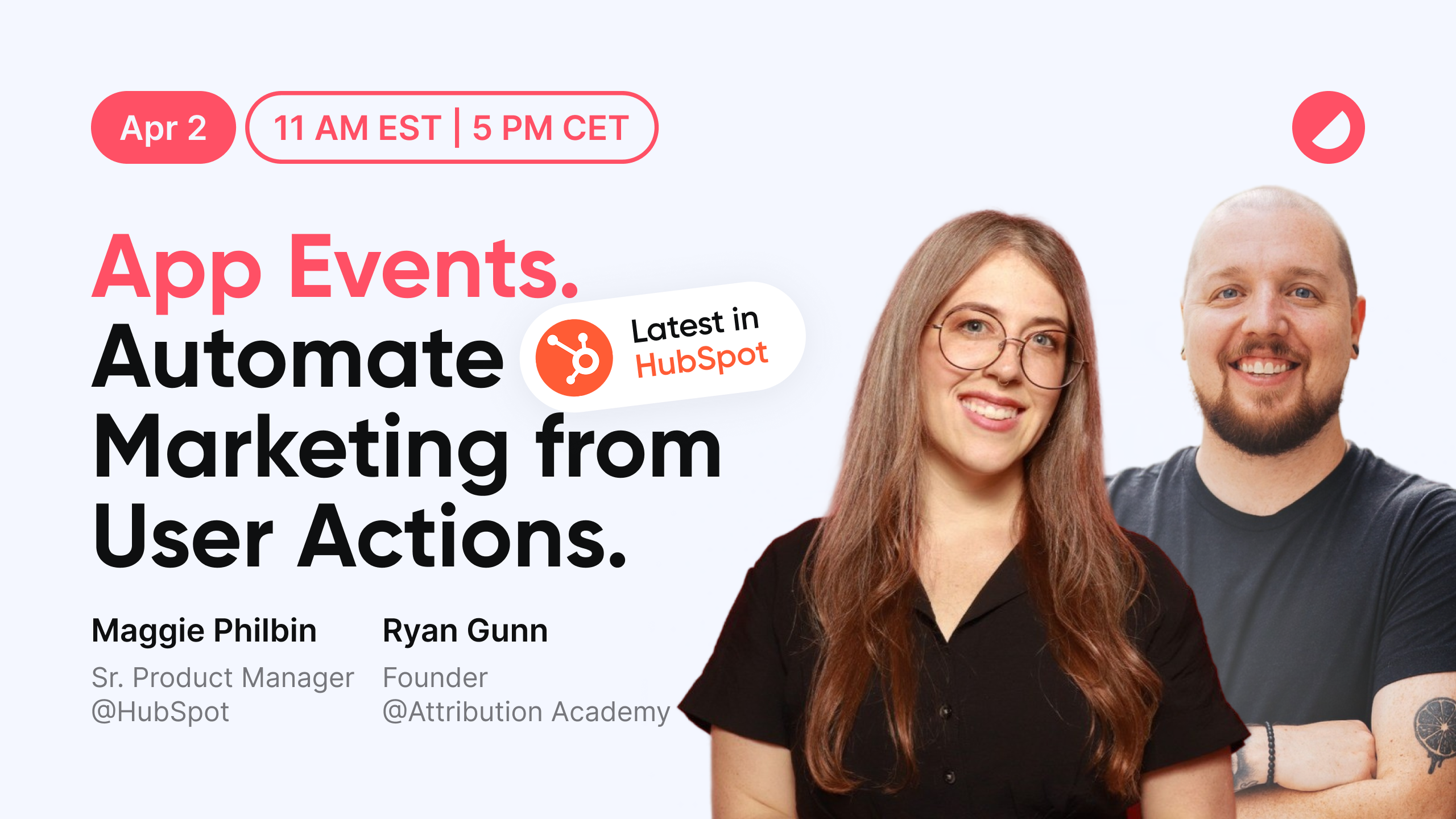
Want to go deeper? This guide covers App Events, lead scoring, Q&A routing, and attribution all in one place with step-by-step examples.

