If you run webinars regularly, you already know how much they tell you about your audience. Each session shows what people care about, the problems they're trying to solve and how close they are to buying. That's insight you can turn into sales conversations, new content and better webinars. But putting it to use usually takes more work than it should.
Today, there are three ways to get that insight out of your webinar platform. You can export the data, clean it up in a spreadsheet and paste it into an AI tool like Claude or ChatGPT. You can stay inside the platform and work with whatever dashboards and reports it offers. Or you can sync it to your CRM, where it's organised but still needs pulling into an AI tool before you can work with it.
All three approaches work, but they don't match how most marketing teams operate now. Writing, repurposing, analysis and planning increasingly happen inside AI tools. The webinar data isn't there.
A webinar MCP closes that gap. It connects your webinar platform directly to the AI tools your team already uses, including Claude, ChatGPT, Gemini and Microsoft 365 Copilot. You ask a question in plain language and the answer comes from your real webinar data. Everything your webinars already capture becomes usable wherever your team works.
What is a webinar MCP?
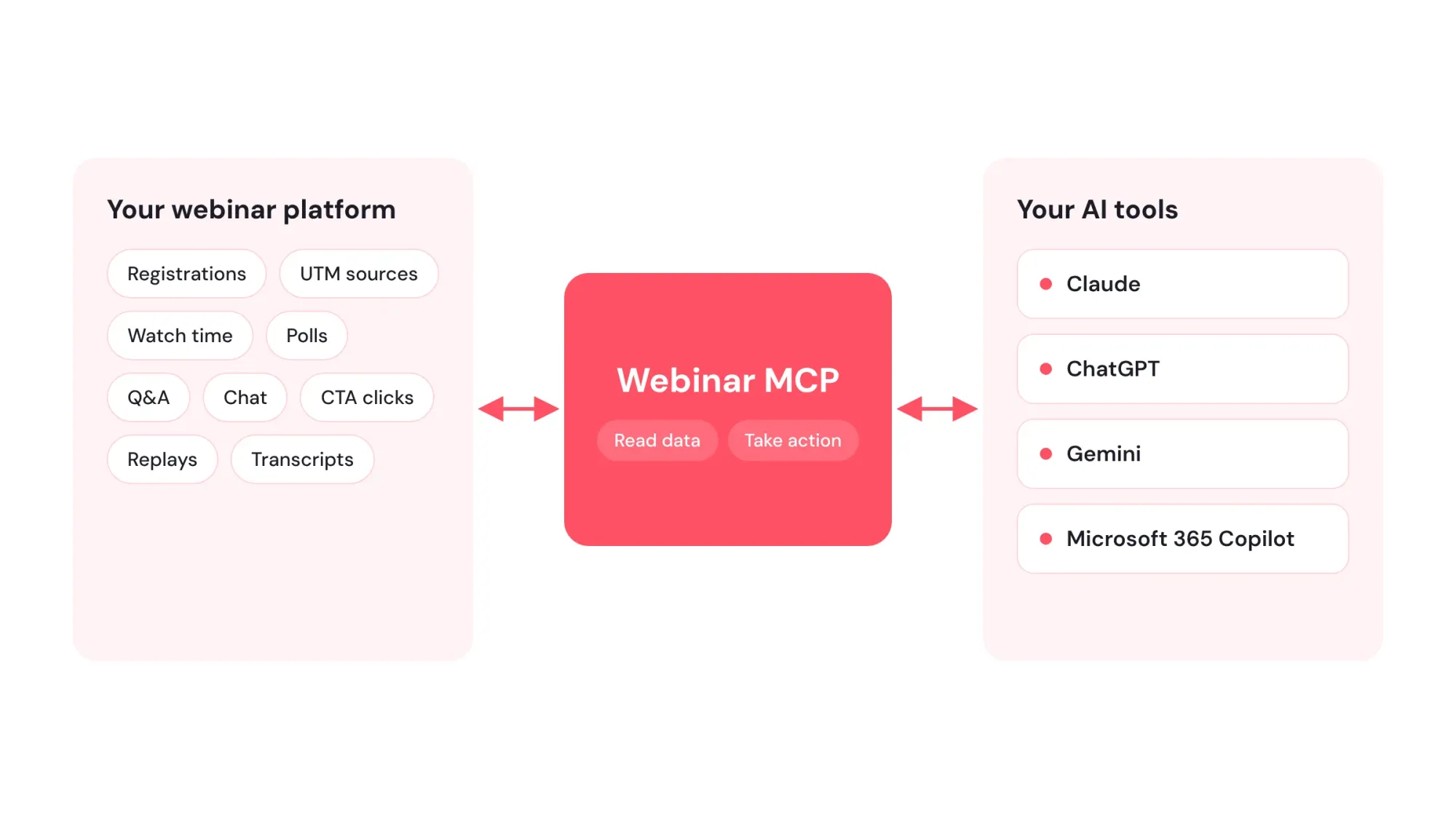
MCP stands for Model Context Protocol. It's an open standard that lets AI tools connect to other software. A webinar MCP is the MCP server a webinar platform builds so AI tools can reach its data. On some platforms, it also lets them take actions.
Without one, the AI only knows what you paste into the chat. With a MCP, you ask "Who were the most engaged viewers at last week's webinar?" and it fetches the answer from your webinar platform.
Setup takes a few minutes. Take the Contrast MCP as an example. You add a single URL to Claude or ChatGPT as a custom connector, sign in with your Contrast account and click Allow. From then on, every chat can access your webinar data.
What can a webinar MCP do?
A webinar MCP does two things. It reads your webinar data so you can ask questions about it. It also takes actions in your webinar platform, so you can set things up without opening it.
Reading your webinar data
Every question below is something you can ask in plain language. The AI picks the right data and answers from it.
| Data | What you can ask |
|---|---|
| Events and schedule | "List my published webinars for the next 30 days with date, time and speakers." |
| Registrations and UTM sources | "Show sign-ups for my most recent published webinar by UTM source, highest first." |
| Registration form answers | "Group the registrants of my last 3 published webinars by job title and show the top 5." |
| Attendance and watch time | "List everyone who watched more than 75% of my most recent published webinar, leaving out our own team." |
| Replays and on-demand views | "How many people watched the replay of my most recent published webinar in its first week?" |
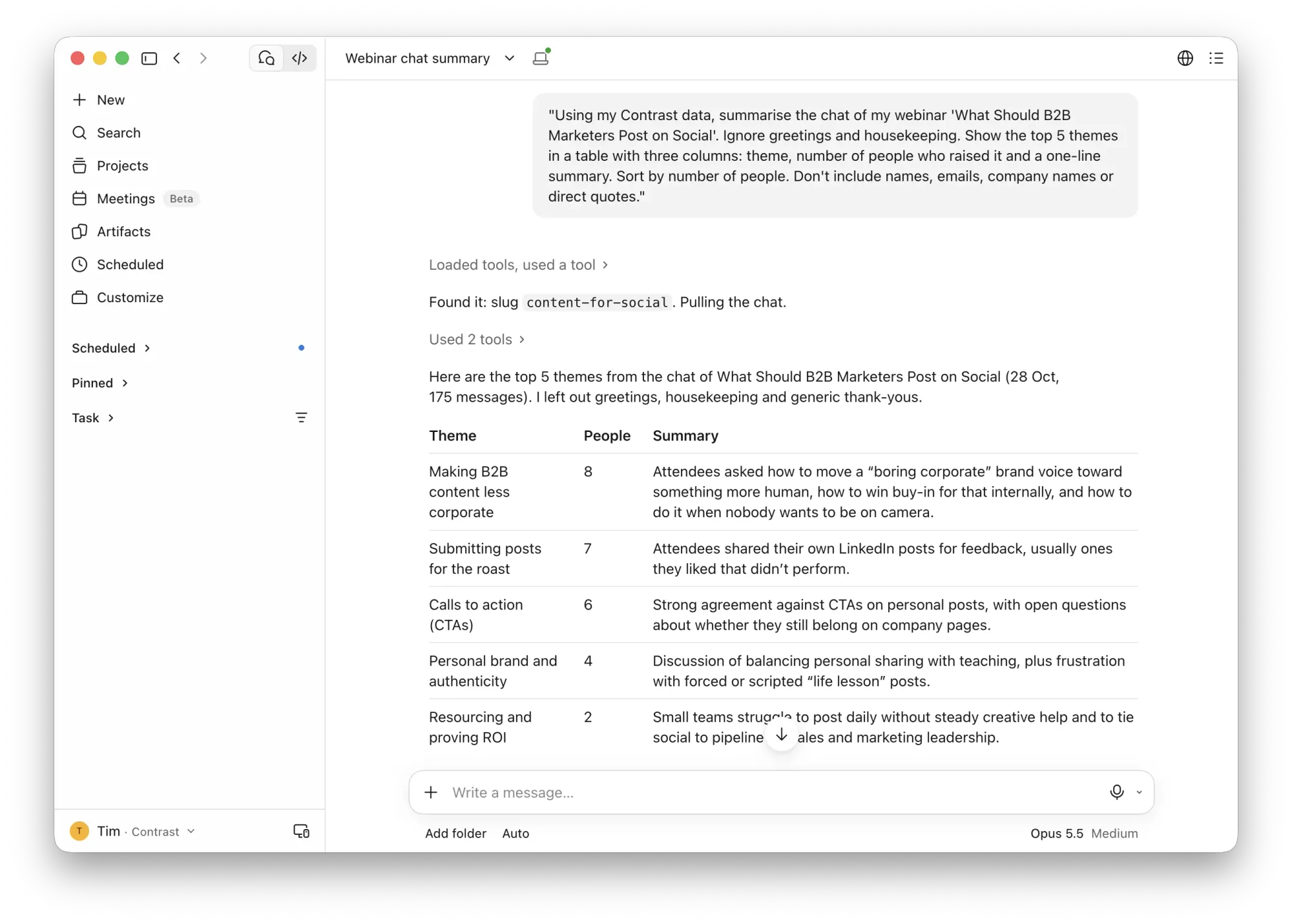
| Chat messages | "Summarise the main topics in the chat of my most recent published webinar. Ignore greetings and housekeeping." |
| Q&A questions | "Group the Q&A questions from my most recent published webinar by topic and show how many people asked about each." |
| Poll responses | "Show the results of each poll in my most recent published webinar and who picked each answer." |
| CTA clicks | "List everyone who clicked our demo CTA during my most recent published webinar, leaving out our own team." |
| Transcripts | "Turn the transcript of my most recent published webinar into a blog post that quotes the speakers word for word." |
| One person's history | "Show every webinar [email] registered for this year and how much of each they watched." |
Taking action in your webinar platform
Some webinar MCPs also let AI tools make changes, like creating events, registering contacts and adding speakers. That means the same chat that analyses your last webinar can set up the next one.
| Action | What you can ask |
|---|---|
| Create events | "Set up a draft webinar next Thursday at 4pm called 'Q1 product update'." |
| Add speakers | "Add our Head of Product as a speaker to next month's webinar." |
| Update events | "Rewrite the description of next week's webinar to focus on HubSpot users." |
| Register contacts | "Register these 40 contacts for Tuesday's session." |
The answers are only as good as the data behind them. A platform that tracks watch time, polls, questions and CTA clicks gives the AI far more to work with than one that only knows who attended.
How marketing teams use a webinar MCP
Each team gets something different out of the same webinar. Here's how that looks in practice, with a prompt you can copy for each one.
Demand gen: see what's actually working
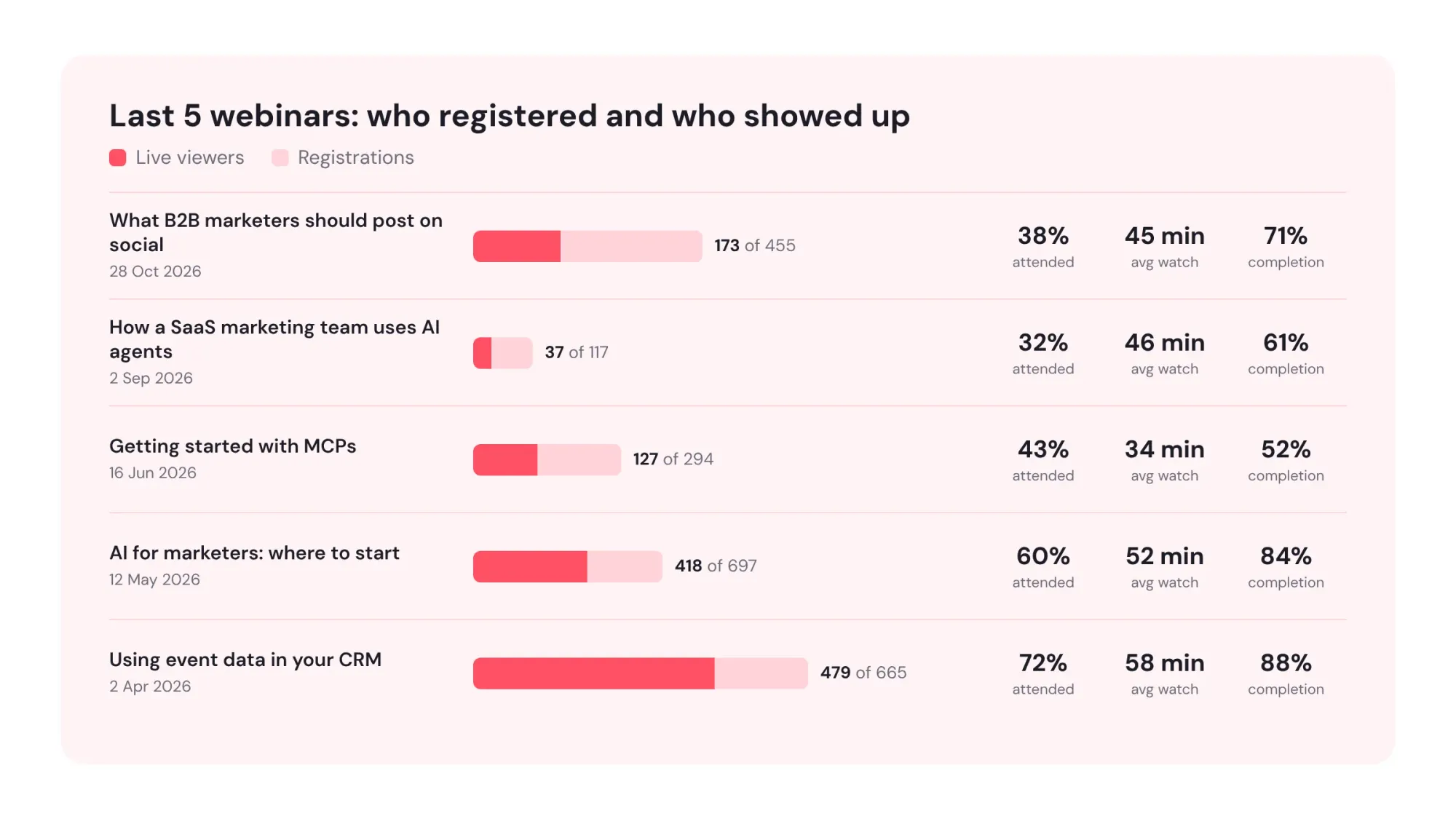
Most webinar analytics stop at registrations and attendance. With your data in an AI tool, you can ask why one session outperformed another and what to change next time. It takes one prompt instead of a spreadsheet.
Prompt: "Compare my last 5 published webinars that went live. Skip demos, tests and internal sessions. Show registrations, live viewers, attendance rate, average watch time and completion for each one in a single chart. Then tell me what the best-performing ones have in common."
Webinar managers: set up the next webinar from a brief
Setting up a webinar means a title, a description, speakers, a date and a registration page. With a webinar MCP, you can do all of it from one message. Paste in your brief and let the AI build the event.
Prompt: "Here's the brief for our next webinar. Create it as a draft in our Marketing channel for the first Tuesday of next month at 4pm EST time. Write the title and description from the brief and add the speakers it names. Show me the details before you create it, and don't publish."
Sales: know who to call first
Attendance alone doesn't tell sales much. Someone who watched to the end, answered a poll and clicked the demo CTA is showing far more interest than someone who left after five minutes. An AI tool can combine those signals and hand sales a ranked list.
Prompt: "From my most recent published webinar, list everyone who watched more than half of it and either clicked our demo CTA or answered a poll. Leave out anyone from our own company. Show name, email, watch time, CTA clicked and poll answer in one table, with people who did both at the top."
It gets more useful when you also connect your CRM. With the HubSpot or Salesforce MCP connected next to your webinar platform, the AI can check webinar engagement against deal stage, pipeline value and lead score in the same chat. Sales sees who engaged and which of them are worth calling first.
Prompt: "Take everyone who watched more than half of my most recent published webinar, leaving out our own team. Look them up in HubSpot and list the ones with an open deal, with deal name, stage and amount. List existing customers separately."
Content: turn audience questions into your next articles
Your best content ideas are often sitting in the chat and webinar Q&A. These are the questions your audience asked in their own words. Most of them never get used once the webinar ends.
Prompt: "Pull the Q&A questions and chat messages from my last 3 published webinars. Ignore greetings, housekeeping like recordings and slides, and anything from our own team or speakers. Group what's left by topic, rank the topics by how many people raised them and suggest a blog post title for the top 5."
Product marketing: hear buyers in their own words
Messaging is stronger when it uses the exact language buyers use. Transcripts, chat and poll answers are full of it.
Prompt: "From the transcript, chat and Q&A of my most recent published webinar, pull the exact phrases attendees used to describe their problems. Skip greetings, jokes and anything from our own team or speakers. Group them by theme and quote each phrase word for word, without names."
Everyone: follow up while it's still fresh
The best webinar follow-up emails reference what happened in the session. An AI tool can write a different email for each group of people, based on what they actually did.
Prompt: "Write three follow-up emails for my most recent published webinar: one for people who watched more than half, one for people who left before halfway and one for people who registered but didn't attend. Tell me how many people are in each group. Reference the questions asked most in the Q&A and use [link] placeholders instead of making up links."
The right starting point depends on where your team feels the most friction. If reporting takes up your Monday mornings, start there. If sales keeps asking who to call, start with engagement.
Which AI tools work with a webinar MCP?
MCP is an open standard, so a webinar MCP works with any AI tool that supports MCP servers. That includes Claude, ChatGPT, Gemini and Microsoft 365 Copilot. What changes from tool to tool is how you add it and who's allowed to.
| AI tool | How you add it | Who can set it up |
|---|---|---|
| Claude | Add it from the connector directory or as a custom connector in Settings | You |
| ChatGPT | Add it as a custom MCP server from Plugins | You |
| Gemini | Add it as a custom app in Settings, on plans that support it | You |
| Gemini Enterprise | Add it as a custom MCP server in Google Cloud | Your Google Cloud admin |
| Microsoft 365 Copilot | Add it as a custom connector in the Microsoft 365 admin center | Your Microsoft 365 admin |
| Other AI tools | Look for an option to add a connector, app or MCP server | Usually you |
Some webinar platforms are listed in Claude's connector directory or ChatGPT's plugin directory, so you can add them in one click. Others give you a server URL to paste in. Either way, you sign in with your webinar account and approve access before anything connects.
If your team works across more than one AI tool, check that your webinar platform supports all of them. Setting up Gemini Enterprise and Microsoft 365 Copilot usually goes through IT, so start that conversation early.
Is a webinar MCP secure?
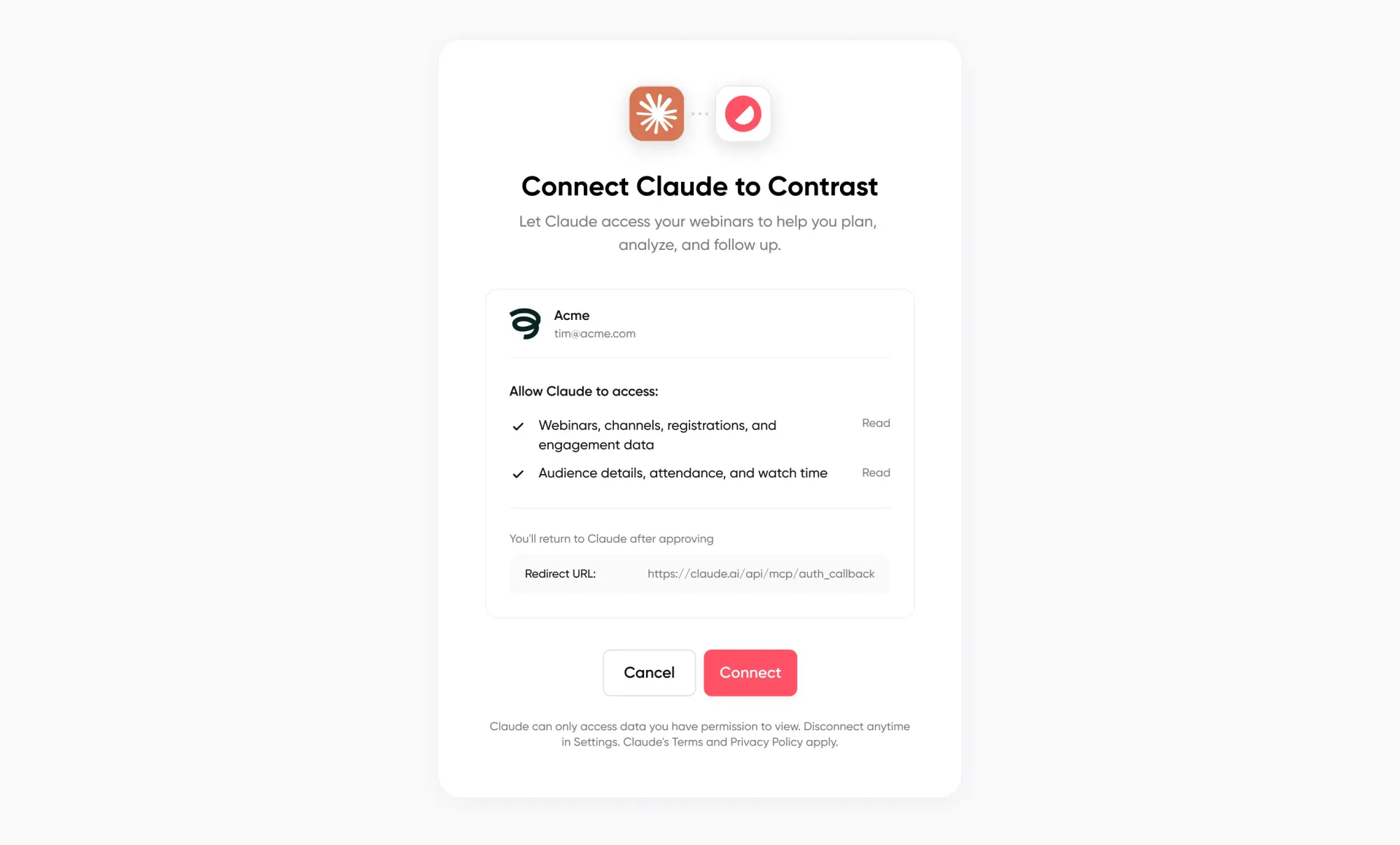
webinar MCP gives an AI tool access to your audience data and lets it make changes in your account. That's worth five minutes of checking before you connect.
A well-built webinar MCP covers four things:
- Secure sign-in: You connect with your own webinar account using OAuth 2.1, the sign-in standard set out in the MCP specification. It's the same kind of sign-in as "Sign in with Google". You never share a password or API key with the AI tool.
- You approve access: Nothing connects until you click Allow.
- It works as you: The AI can only see the webinars your account can see and do what your account is allowed to do. If a teammate can't change settings in your webinar platform, they can't change them through the AI either.
- Disconnect any time: Remove it from your AI tool and access stops straight away.
Making changes needs more care than reading data. Asking about last week's attendance can't break anything, but creating an event or registering contacts can. Check whether your AI tool asks before it makes a change, and keep that switched on.
How to connect a webinar MCP
Setup is similar on every platform and takes a few minutes. Here's how it works, using the Contrast MCP as the example.
- Copy your MCP server URL. Your webinar platform gives you this. For Contrast, it's
https://mcp.getcontrast.io/mcp, the same for every account. You can also find it in Contrast under Integrations, on the MCP card. - Add it to your AI tool. In Claude, go to Settings, then Customize, then Connectors, and add a custom connector. In ChatGPT, go to Plugins and add a custom MCP server. Paste in the URL.
- Sign in and approve access. A browser tab opens. Sign in with your webinar account and click Allow.
- Check it works. Start a new chat and ask "What can I do with my Contrast connector?" The AI lists what it can see and do in your account.
From then on, the connection stays in place. You don't need to sign in again each time you start a chat.
We have step-by-step guides for Claude, ChatGPT and Gemini, Microsoft 365 Copilot and other AI tools.
Choosing a webinar MCP
Several webinar platforms now offer an MCP server. So the question is less whether yours has one and more what it gives the AI to work with. Three things decide how useful it is:
- The depth of the data: Watch time, poll answers, Q&A, chat, CTA clicks and transcripts give far better answers than registrations and attendance alone.
- The actions it supports: Reading data answers questions. Creating events and registering contacts saves time on the work itself.
- How it fits your stack: A webinar MCP is most useful in the AI tools your team already uses, connected next to your CRM.
Start with one job your team does every week, like reporting or follow-ups. Run it through your AI tool once and compare the result with how you do it today. That tells you quickly whether the data is there.


Ready to use your webinar data with AI?
Connect Contrast to your AI agent and turn every webinar into reports, follow-ups and pipeline in minutes, not hours
Start for freeFrequently asked questions
What is a webinar MCP?
A webinar MCP is an MCP server built by a webinar platform. It connects your webinar data to AI tools like Claude, ChatGPT, Gemini and Microsoft 365 Copilot. You can then ask questions about your webinars in plain language and take actions, like creating events, without opening the platform.
Which webinar platforms have an MCP server?
Contrast, Livestorm, Goldcast and Sequel all have MCP servers. They differ in what data they expose and which actions they support, so check each platform's documentation for its list of tools.
Do I need technical skills to use a webinar MCP?
No. You paste a URL into your AI tool, sign in with your webinar account and click Allow. After that, you ask questions in plain language.
What's the difference between a webinar MCP and a webinar API?
A webinar API lets developers build integrations, like syncing registrants into a CRM. A webinar MCP lets AI tools use that same data when you ask a question in plain language. Most MCP servers are built on top of the platform's existing API.
Can a webinar MCP repurpose webinar content?
Yes. With transcripts, chat and Q&A available, an AI tool can turn a session into blog posts, social posts, emails and FAQs. It uses what was actually said, not a generic summary. See more ways to repurpose a webinar.
Can I use a webinar MCP with HubSpot?
Yes. Connect your webinar MCP and the HubSpot connector in the same AI tool and it can work across both. For example, it can match webinar engagement against deal stage or lead score. This sits alongside your existing HubSpot webinar integration, which syncs registrations and engagement into HubSpot automatically.
Is the Contrast MCP free?
Yes. The Contrast MCP is free to use with your Contrast account. Copy the server URL, https://mcp.getcontrast.io/mcp, add it to your AI tool and sign in with your Contrast account.